If you are looking for a truly impressive laptop with premium build
quality, fantastic specs with solid performance, great battery life, and
wrapped in an attractive thin-and-light package, then you’ve probably
been shopping for a MacBook. HP is hoping to change all that with the
introduction of the
HP Spectre x360 (starting at $899.99).
This 13-inch ultrathin laptop not only delivers premium performance
with premium hardware wrapped in premium materials, but the Spectre x360
also surpasses the 13-inch MacBook Air in terms of battery life, Wi-Fi
performance, and the ability to function as a tablet. Before we explain
why we think this is the most impressive HP consumer laptop we’ve ever
seen, let’s address the elephant in the room and provide some background
on the old “Windows vs Mac” debate.
While the overwhelming majority of businesses worldwide purchase
Windows PCs to get serious work done, Apple’s MacBook line of notebooks
are one of the most desired purchase options for U.S. consumers who want
a “premium” computing experience.
Sure, Macs owners only make up 13 percent of the U.S. PC market, but that 13 percent of customers are willing to pay
much
more for each computer they buy. Every Windows PC manufacturer
recognizes the monetary value of customers who not only see a product as
“desirable” but who are willing to pay a “premium” price to own that
product.

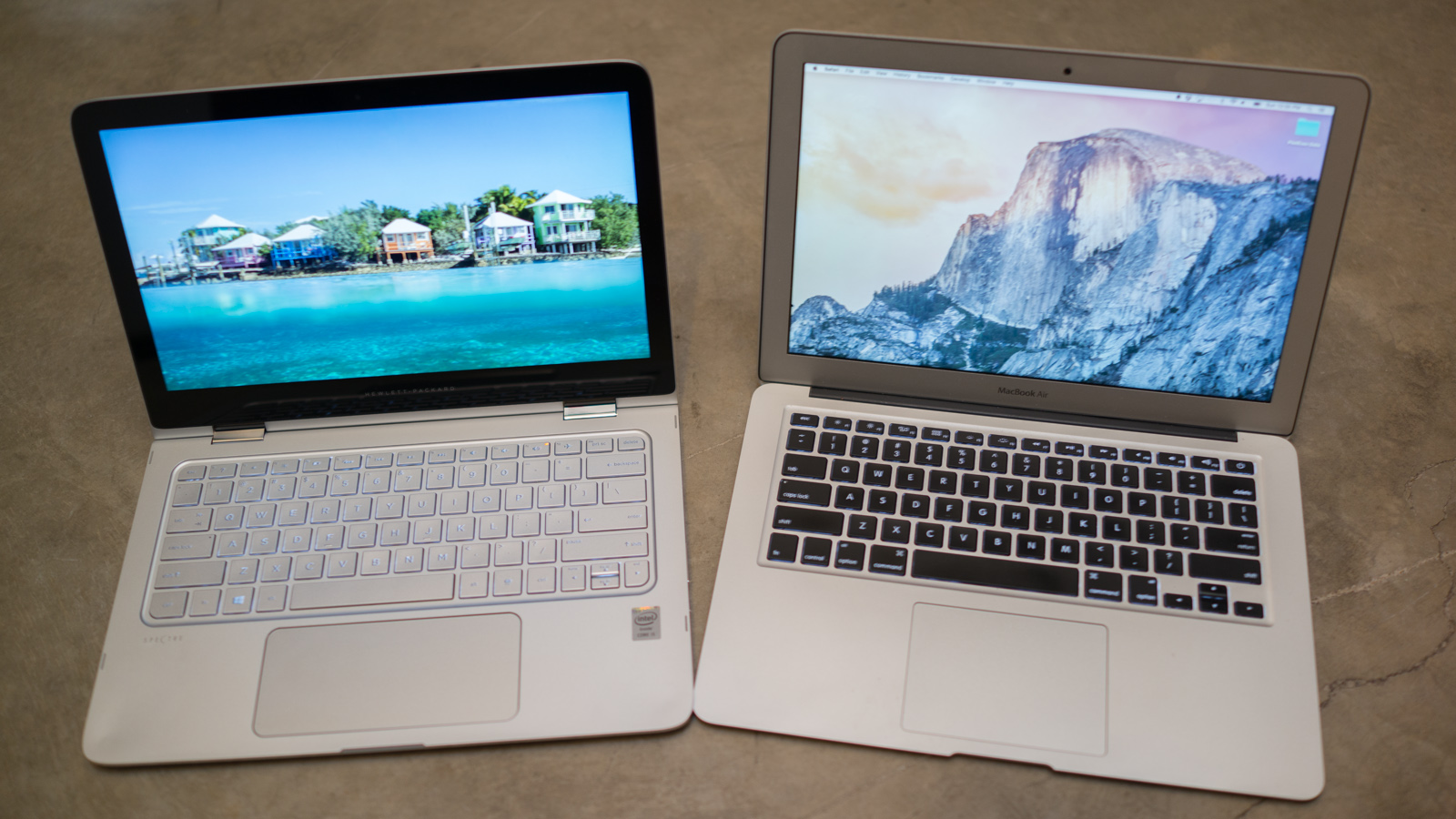
HP Spectre x360 (left) next to 13-inch Apple MacBook Air (right)
We’ve seen countless Windows laptops from a wide variety of
manufacturers over the years that were designed to look “similar” to a
MacBook and built “almost” as well as a MacBook for “around” the same
price as a MacBook. None of the previous Windows-based MacBook
clones competitors have dethroned Apple, and those Windows-based products usually failed due to at least one of the following issues:
- MacBooks have arguably superior build quality with metal construction, lighter weight, and a simple, attractive design.
- MacBooks include unique design features that improve the overall
user experience (e.g., large gesture-enabled touchpad, high-resolution
display, super-fast ports for transferring data, and MagSafe AC
adapters).
- MacBooks deliver a better user experience because Apple built the OS
and the computer (resulting in optimized hardware and drivers for
faster startup, better battery life, and fewer problems related to
miscommunications between software and hardware).
- When those consumers shopping for a premium PC saw a MacBook and a
Windows laptop that was “almost” as good as a MacBook for around the
same price, consumers usually said, “I’ll just buy the Mac.”
Which brings us back to the
HP Spectre x360. Keep reading to see why we think Apple should be worried.

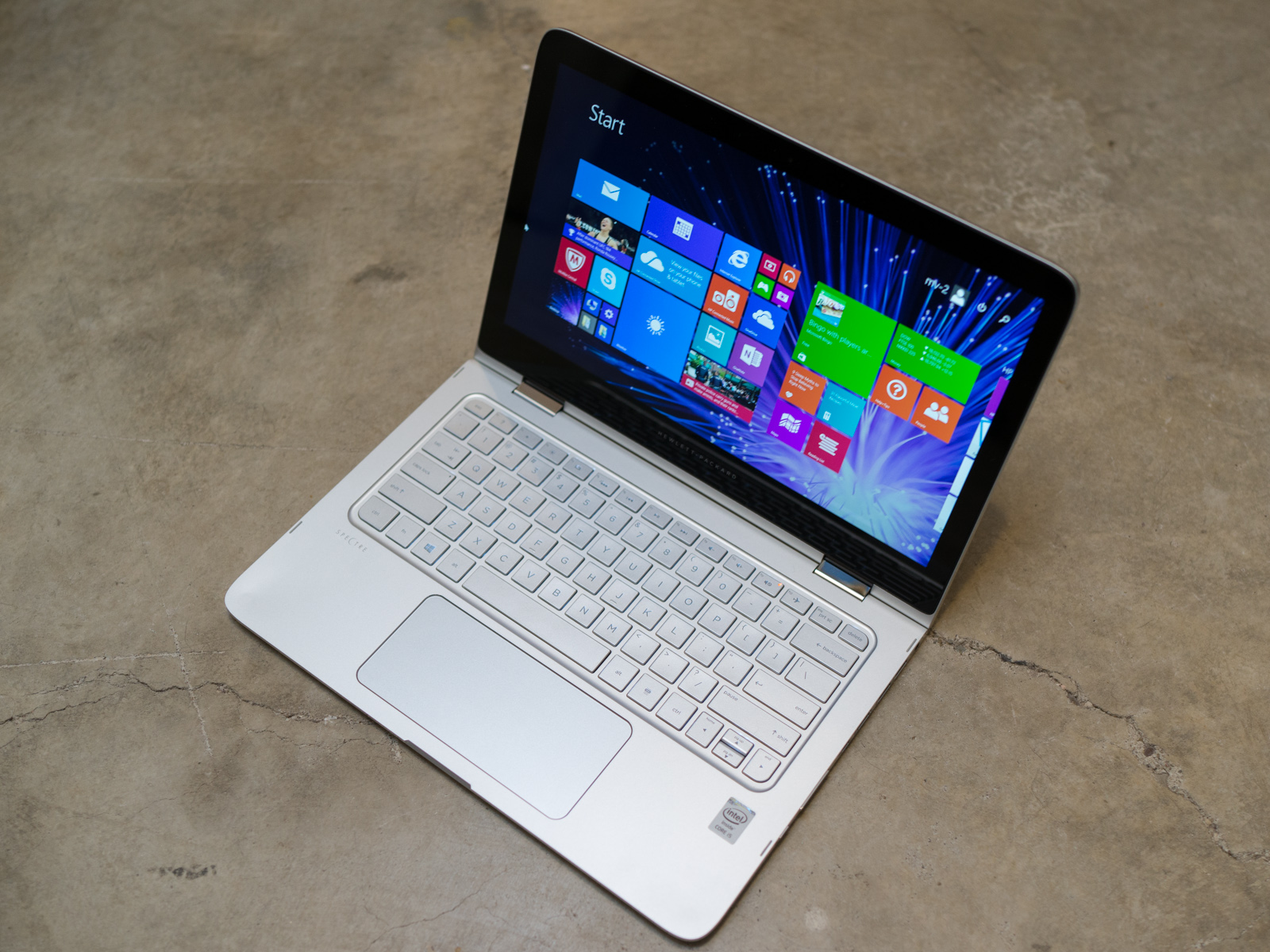
HP Spectre x360 in laptop mode
Build and Design
As the lengthy introduction suggests, the HP Spectre x360 is clearly
targeting current and potential MacBook Air customers. This HP laptop
isn’t a “clone” because it features multiple unique design elements
along with durable multimode hinges that allow the Spectre x360 to
function as a traditional laptop, a tablet, and move into two more
positions for presentations. That said, you cannot help but notice
several design similarities when you look at this HP next to a 13-inch
MacBook Air.
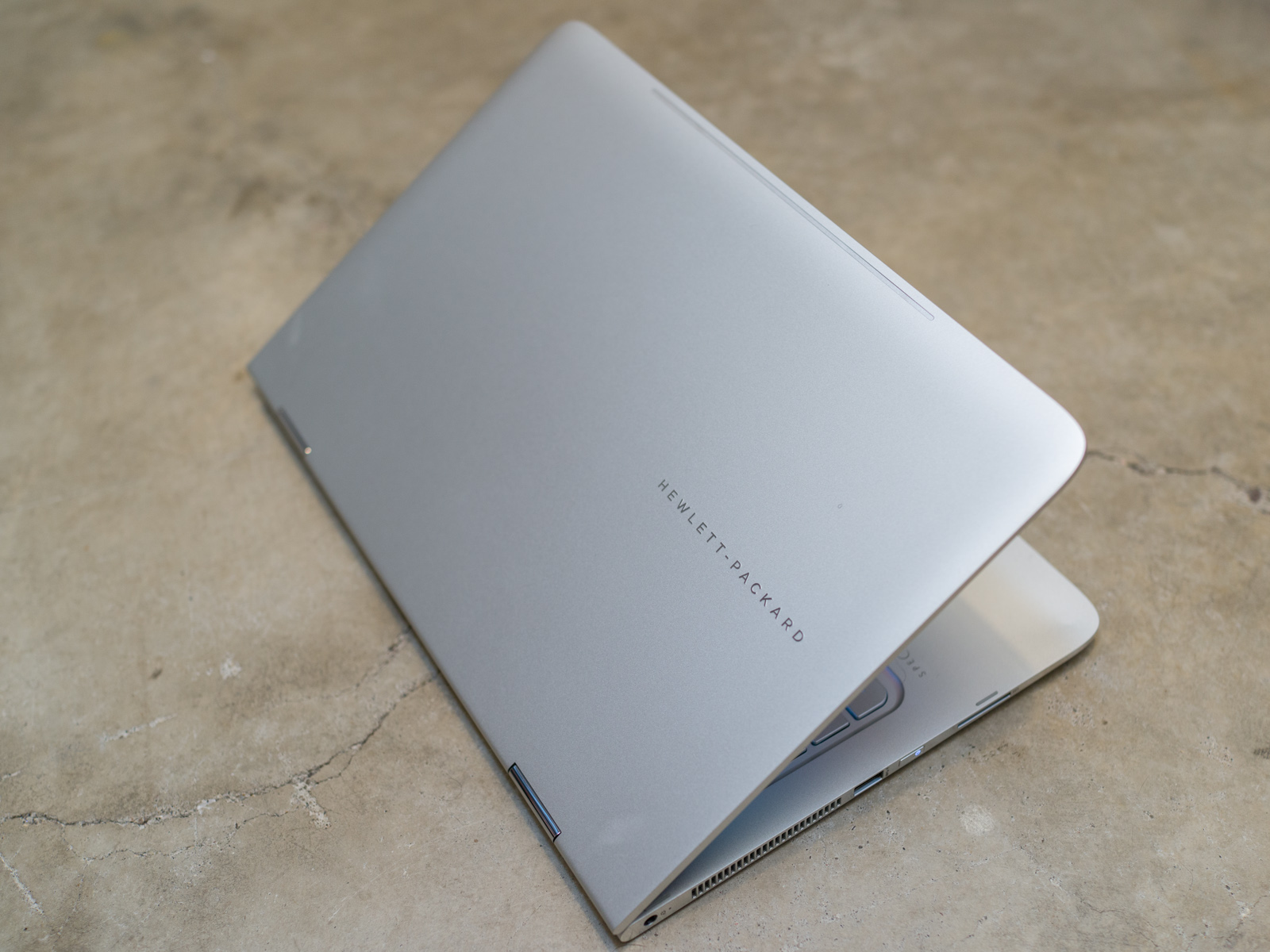
The HP Spectre x360 features an all CNC aluminum chassis (each part
of the chassis is milled from a single block of aluminum) and weighs
just 3.3 pounds with a maximum thickness of 15.9 millimeters (0.625
inch). One design element that we really appreciate is that HP polished
the metal on the sides of the chassis; this not only gives the edges a
jewelry-like finish but it makes the edges of the Spectre x360 feel
pleasingly smooth to touch when you plug in a USB drive or if you’re
holding the x360 like a tablet for several hours.

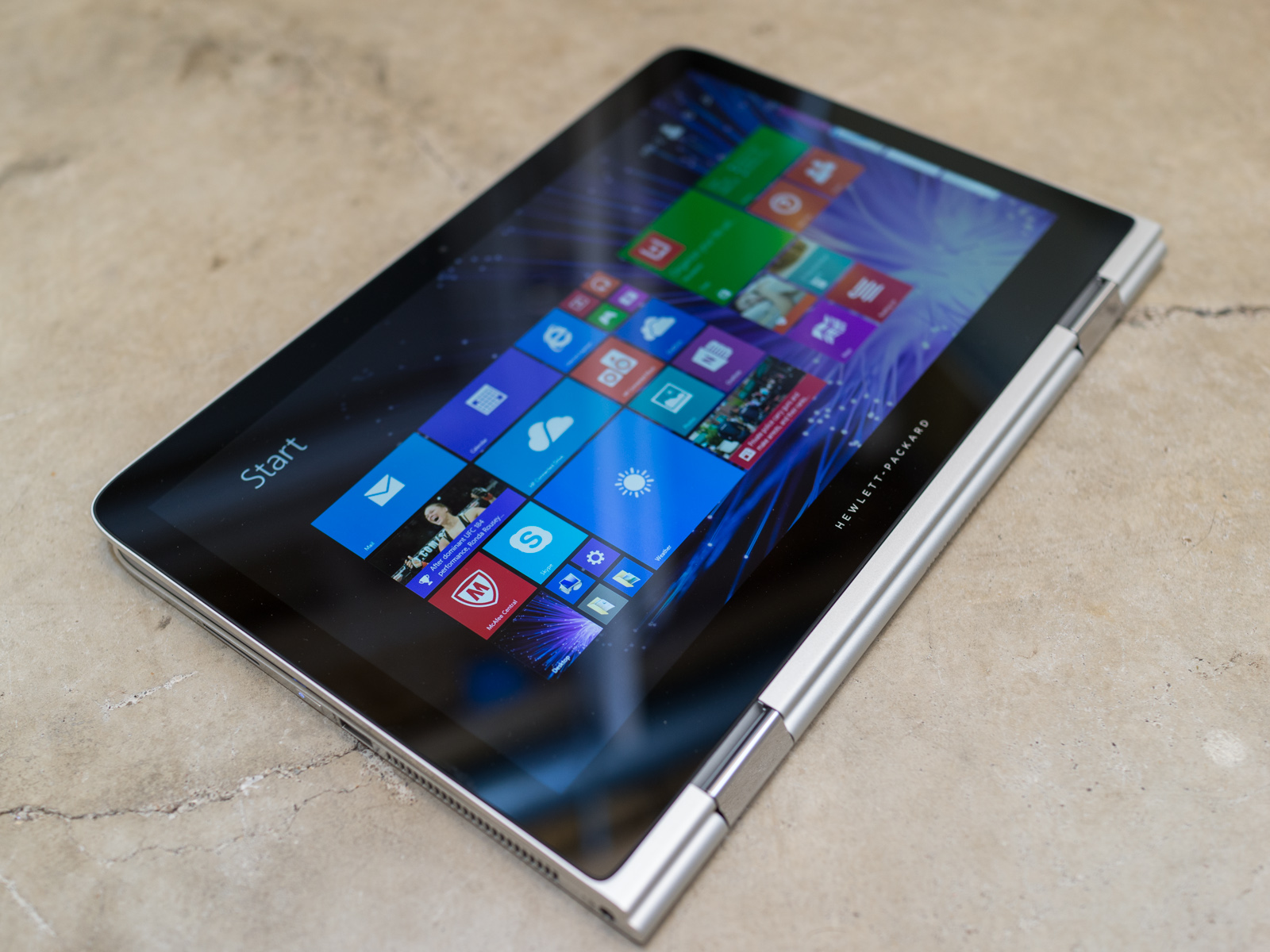
The HP Spectre x360 in tablet mode.
Opening the screen lid on the x360 and moving it into the variety of
multimode positions is a likewise enjoyable experience thanks to the
innovative new hinge design that HP is using here. Each hinge contains a
set of three spiral gears that force the two hinges to move in precise
synchronicity. In other words, if you grab one corner of the screen and
move it the other corner of the screen will move smoothly and precisely
so there is no “flex” in the screen as you move it from one position to
another.
The geared hinges supply a nearly perfect balance of resistance and
freedom of movement; the screen won’t move out of position simply
because you press the touchscreen, but you won’t need to apply
noticeably strong force to open the lid or move the screen into tablet
mode. Additionally, the unique hinge design allows the x360 to maintain
the exact same height/thinness in tablet mode that it has when the lid
is closed (most “flip-screen” convertible laptops are slightly thicker
in tablet mode because of the way the hinges move).

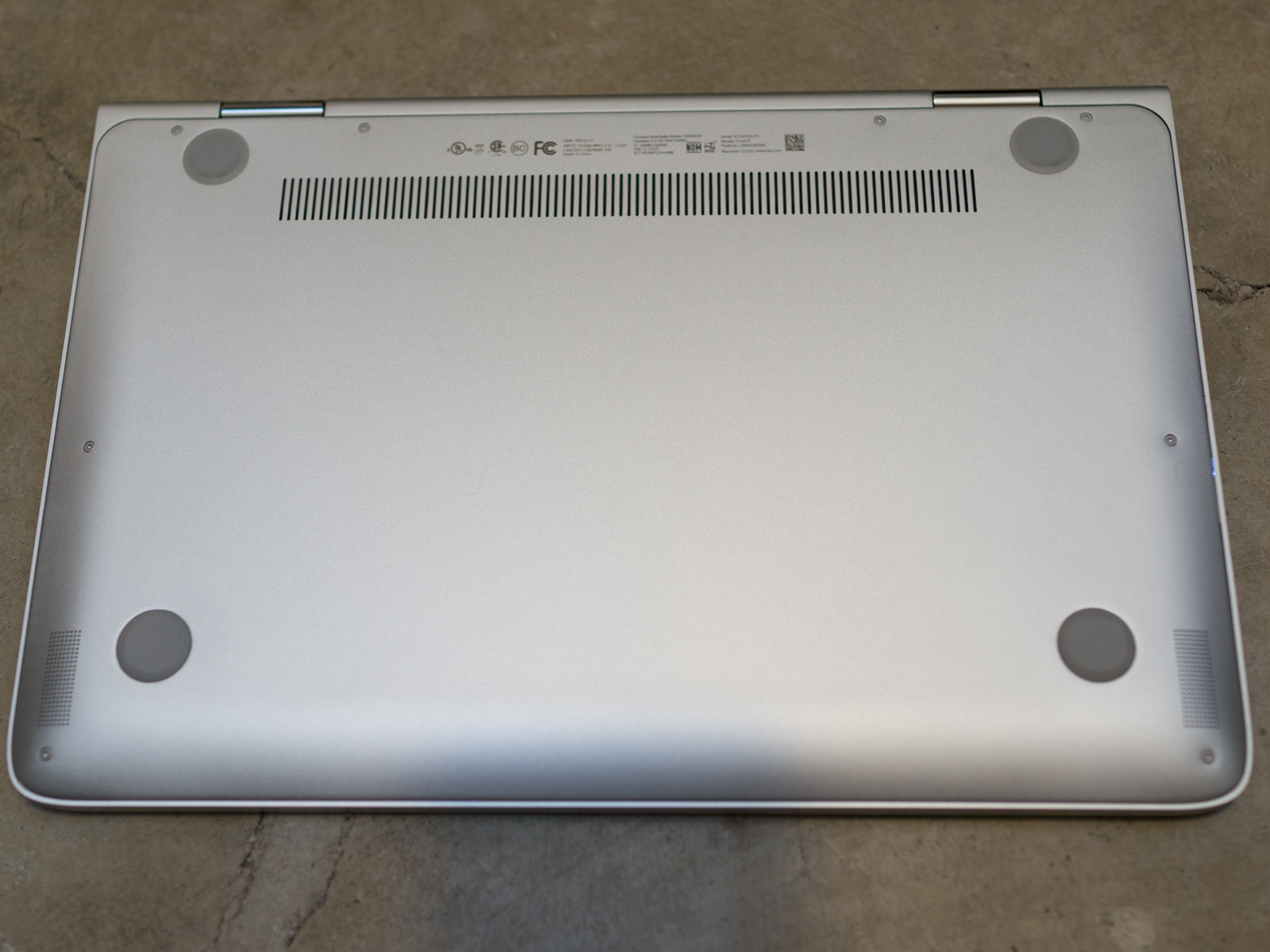
The bottom plate of the HP Spectre x360 is clean and simple.
The bottom of the Spectre x360 features a large base plate that is
secured by eight T5 Torx screws. While this isn’t ideal for those who
want easy access the internal components for service or upgrades, you
can open the chassis.
On the other hand, the x360 suffers from the laws of physics just
like a MacBook Air or any ultrathin laptop; in order to make a notebook
this thin the manufacturer cannot use standard SATA connectors for hard
drives (SATA is too thick). Thankfully, most consumers won’t want or
need to upgrade the x360 since HP uses quality LPDDR3 RAM and
impressively fast M.2 solid state drives (SSDs). We’ll talk more about
the internal hardware in the performance section.
Ports and Features (and a freaking awesome Wi-Fi antenna)
The x360 might be as thin as a 13-inch MacBook Air but it’s packed
with a noticeably superior variety of ports. The left side Spectre x360
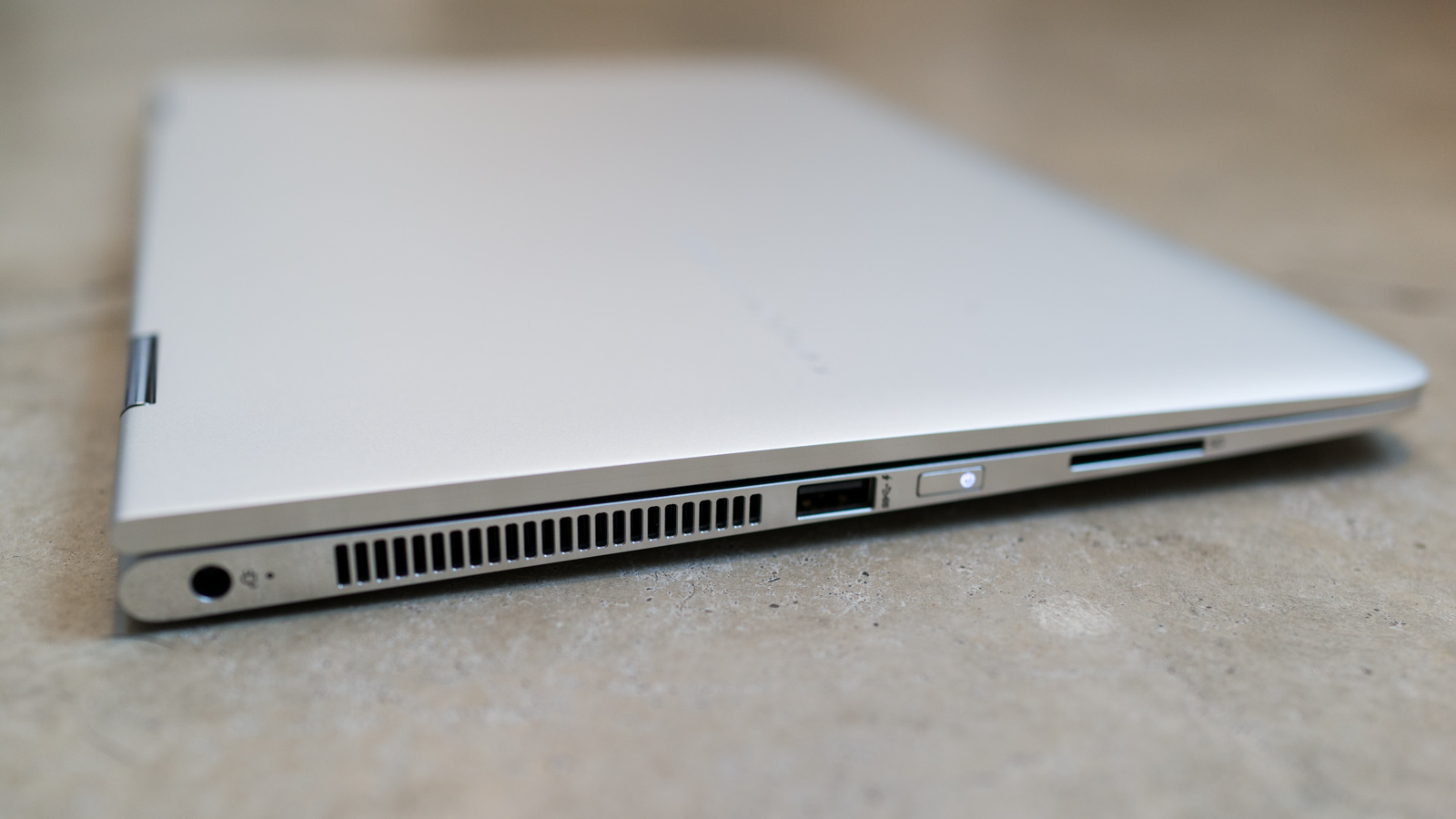
includes the AC adapter connection, the cooling fan exhaust vent, a USB
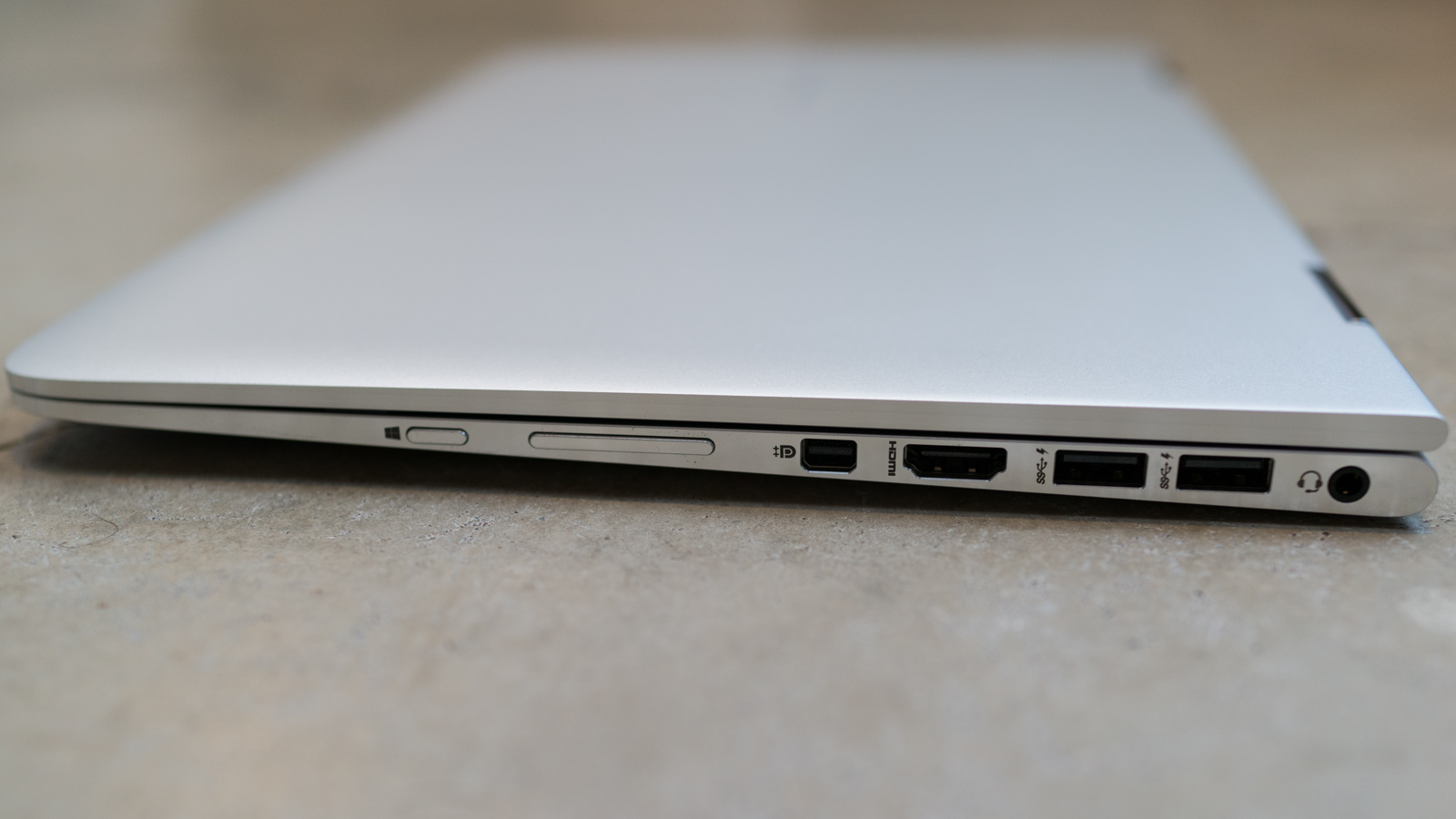
3.0 port, the power button, and a SDHC/SDXC card slot. The right side
ports include a second Windows button (for use when the x360 is in
tablet mode), a rocker-style volume button, mini DisplayPort, full-size
HDMI out, two additional USB 3.0 ports and a headset audio jack.


We should also point out that all three of the USB 3.0 ports on the
Spectre x360 are “sleep and charge” USB ports … so you can charge USB
devices even when the notebook is in sleep mode.
One feature that really surprised us was the Wi-Fi performance of the Spectre x360. HP has
dramatically
improved the Wi-Fi performance in terms of both speed and connection
reliability thanks in large part to a new “antenna slot” that is milled
out of the front/top edge of the screen lid. The antenna slot prevents
the aluminum chassis from blocking the Wi-Fi spectrum and allows for
more effective reception of both the 2.4 GHz and 5 GHz bands of the
various 802.11 protocols.

You may not notice the antennae strip on the top edge of the HP Spectre x360 screen lid.
Setting aside the techno-babble, the bottom line is the x360 delivers
spectacular Wi-Fi performance. Not only did the x360 provide a stable
connection to our test routers with impressive upload/download speeds at
a variety of distances, but the x360 even managed to detect several
distant routers located in nearby buildings that other laptops
(including a 13-inch MacBook Air from 2014) couldn’t see on their lists
of available Wi-Fi signals.
We compared the x360 against the 13-inch MacBook Air at the same
location in our Wi-Fi test environment. The x360 managed a fairly
consistent download speed that peaked at 53.0 Mbps and a reasonably
stable upload speed that peaked at 5.8 Mbps with a ping response of 21
ms. The MacBook Air’s download speed was less consistent and peaked at
just 42.8 Mbps but delivered similar upload and ping speeds.
Screen and Speakers
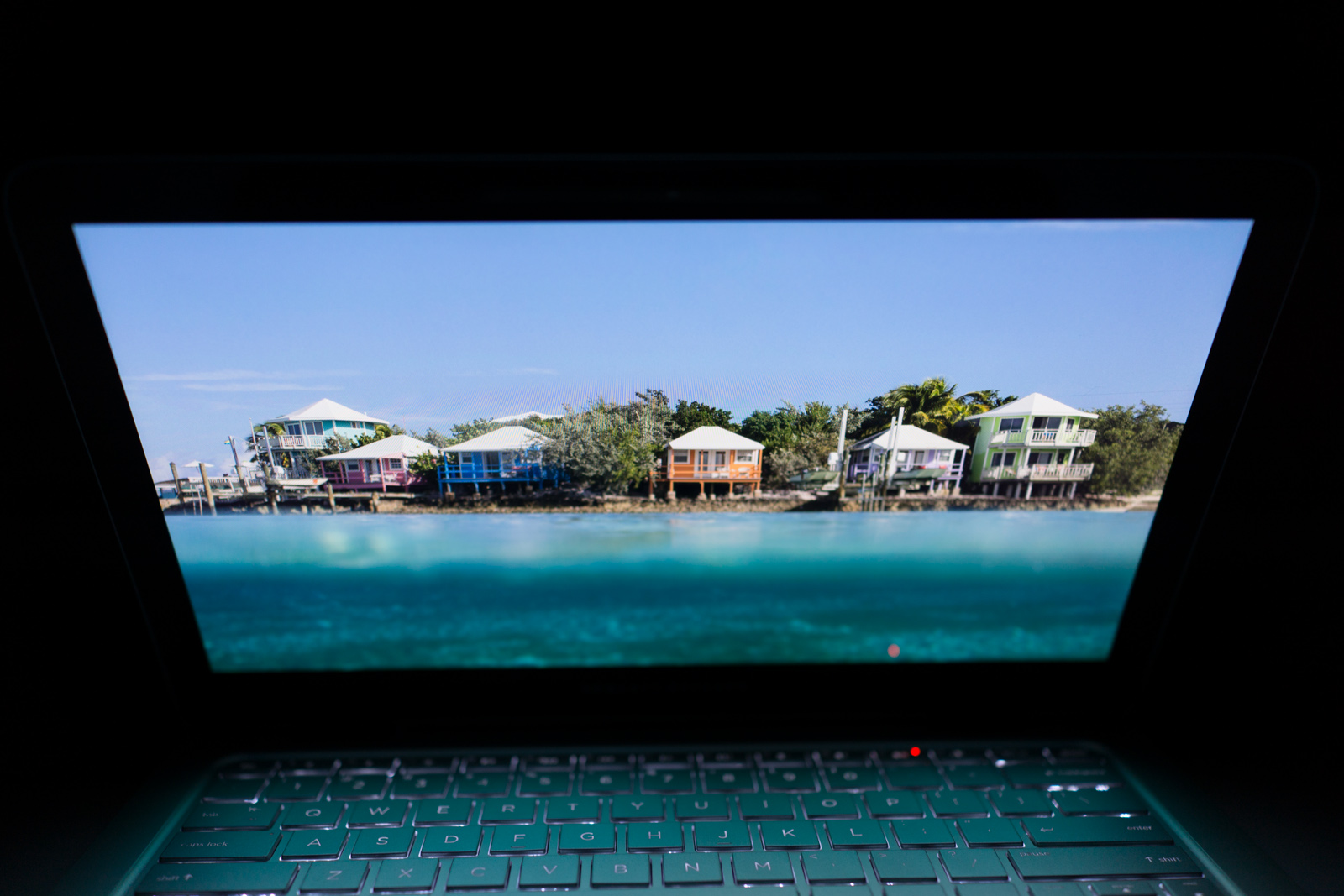
The high-resolution touch display on the Spectre x360 is another
jewel in this attractive laptop. The touch panel surface is optically
bonded to the display so less light from the LED backlight is
diffused/lost, making the display brighter and making the screen easier
to see at lower brightness levels (and helping to extend battery life).
HP offers two different IPS display options for the x360; either a
Full HD (1920 x 1080 resolution) IPS touch-enabled display with 72%
Adobe RGB color gamut or a Quad HD (2560 x 1440 resolution) IPS
touch-enabled display for those who demand more screen real estate.


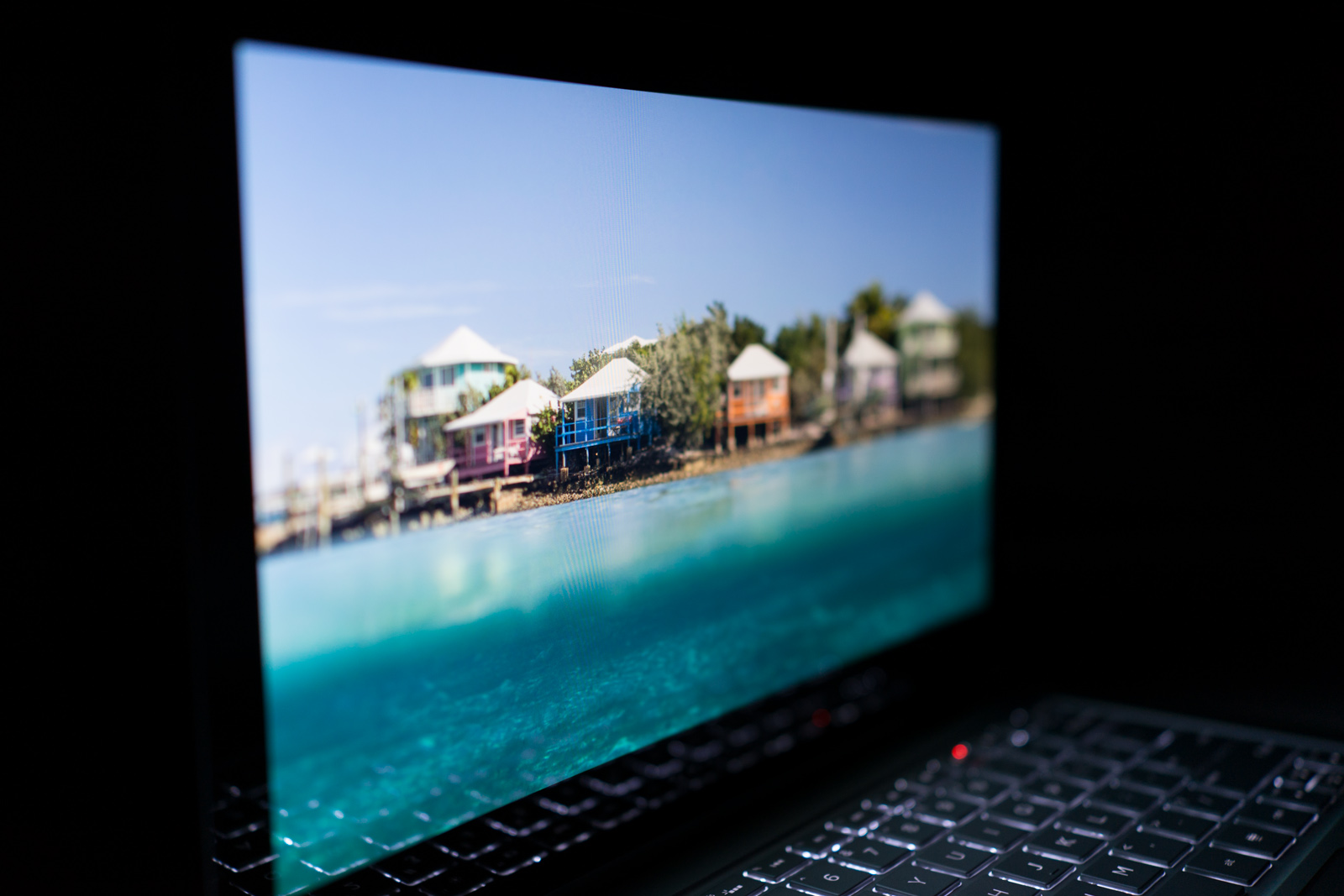
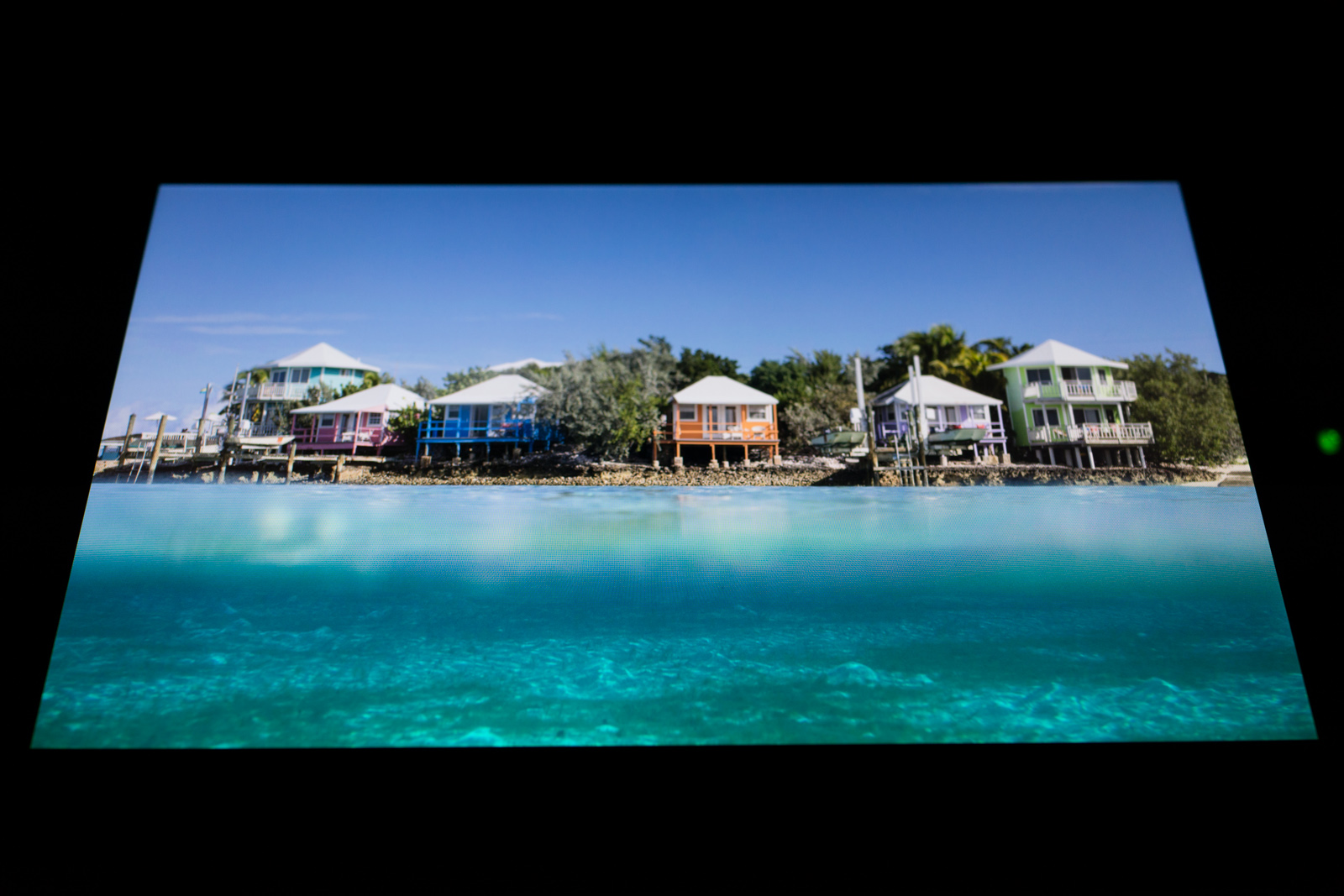
Our review unit comes with the FHD screen which delivers exceptional
color accuracy, great contrast, and fantastic viewing angles combined
with bright and evenly distributed backlighting. In short, this is the
type of IPS touch display you want on a notebook. While we might have
enjoyed playing with the Quad HD display, the reality is that the FHD
screen is gorgeous and 1080p resolution is more than enough for most
people using a 13-inch touchscreen (small icons on a Quad HD display
will prove more difficult to reliably touch due to all those extra
pixels being crammed into a 13-inch surface area).

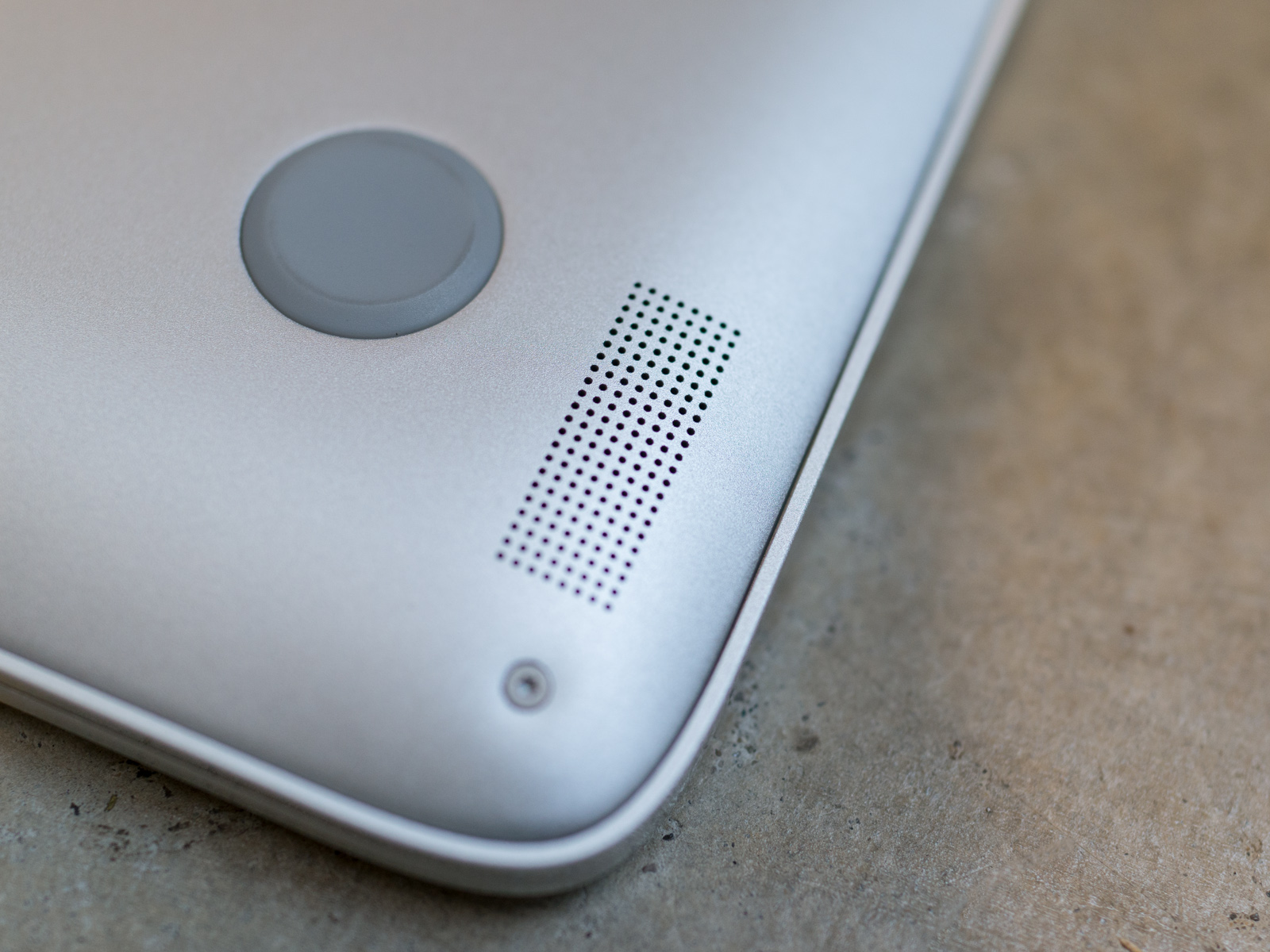
Two small speakers still produce big sound.
The small stereo speakers located on the bottom of the x360 are easy
to overlook since these are non-branded speakers instead of the
BEATS-branded speakers on previous HP premium notebooks. Nevertheless,
these pint-sized speakers deliver quality sound at all volume levels.
The audio playback has a decent range from highs to lows with good
clarity but these little speakers can’t deliver the kind of bass you
only get from a dedicated subwoofer.
Keyboard and Touchpad
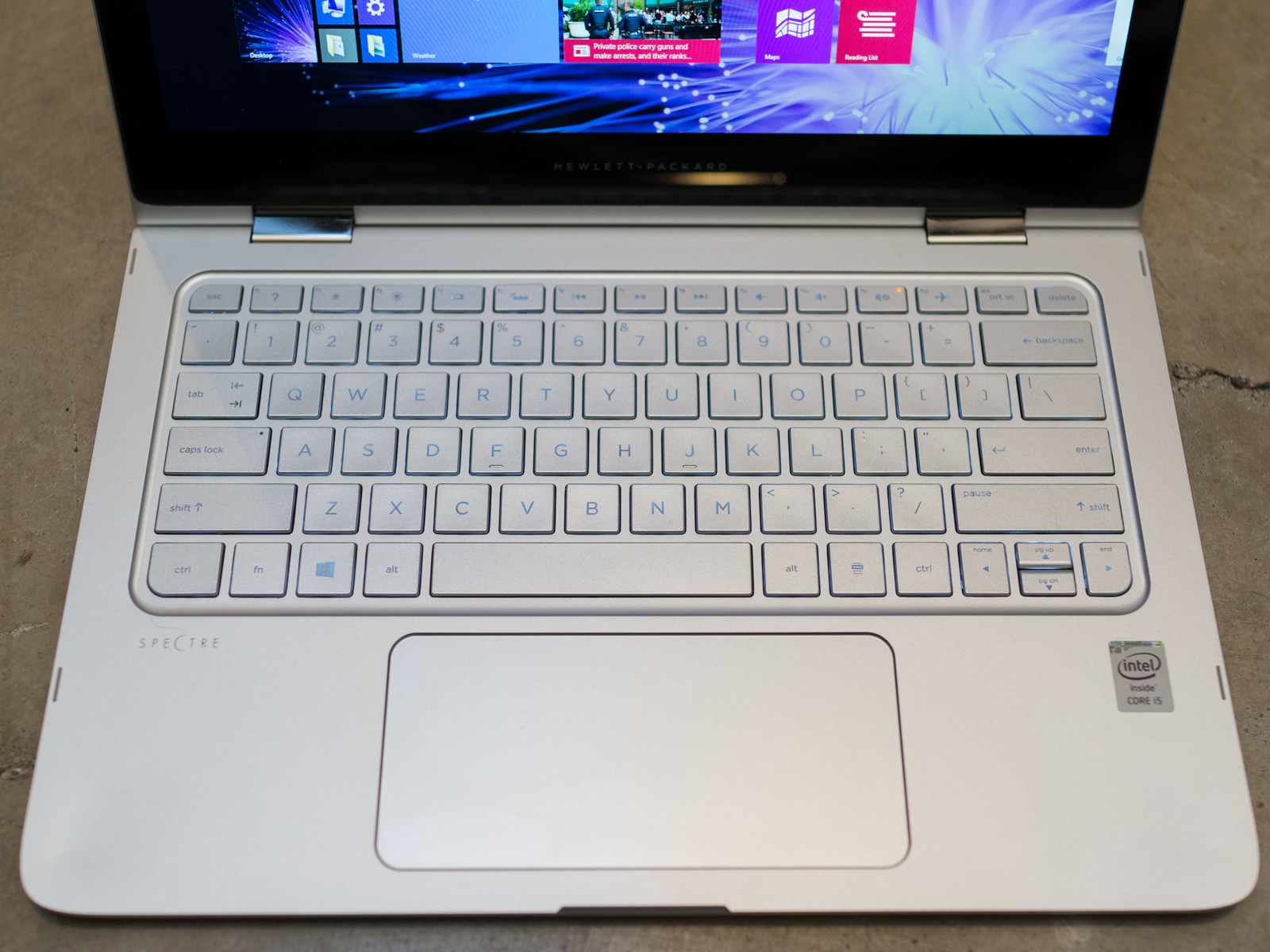
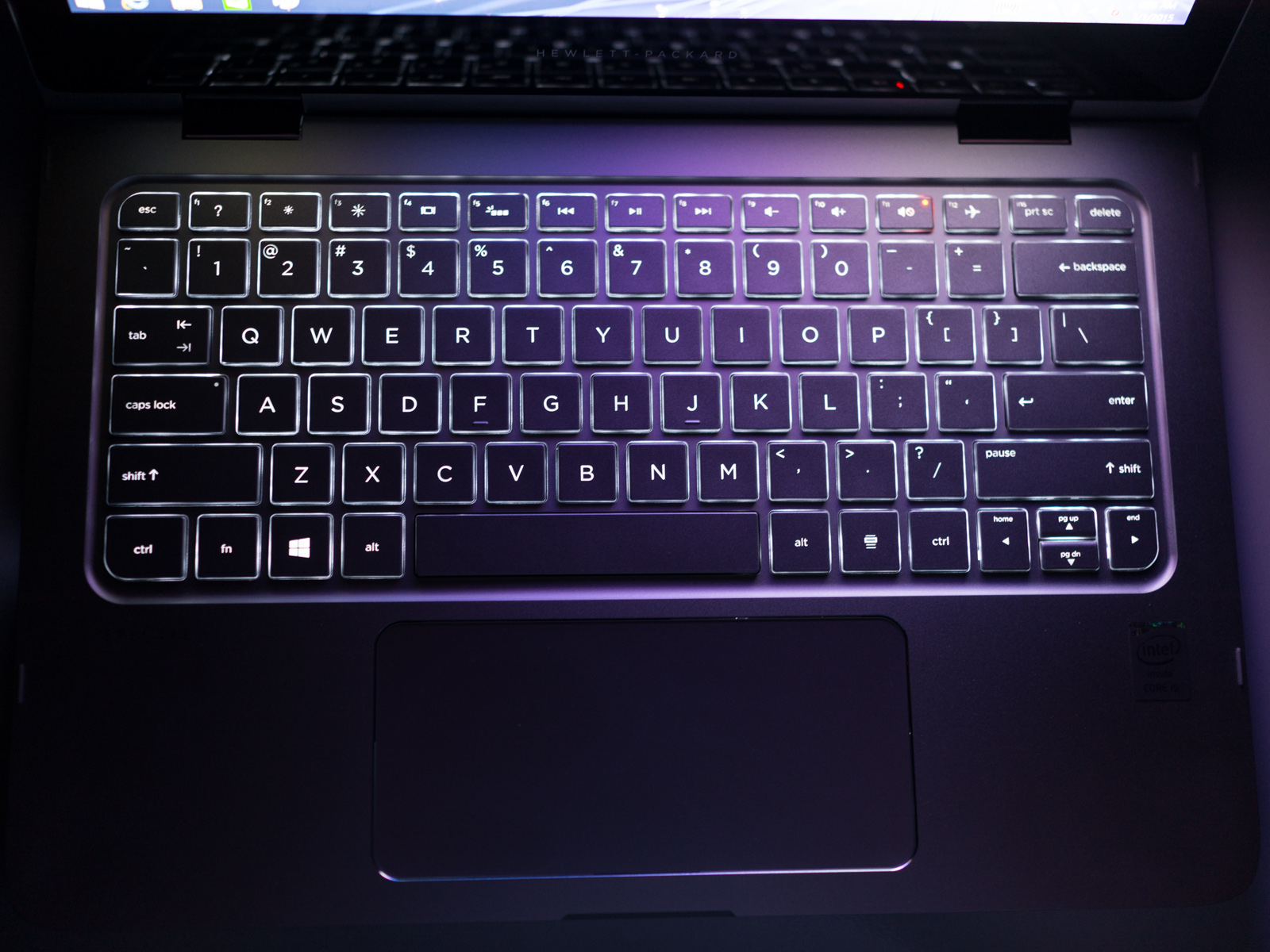
The full-sized keyboard on the x360 features Chiclet-style or
island-style keys with LED backlighting. Unlike some 13-inch (and
smaller) laptops, there is adequate spacing between each key to avoid
the typos common to more cramped keyboards. HP was clearly focused on
delivering a great typing experience with this laptop; each key has 1.5
millimeters of travel with good resistance and the perfect amount of
feedback as you type.


Our only complaint about the keyboard on the x360 is relatively
minor: There is no option to adjust the brightness of the LED
backlighting. The shortcut key controlling the keyboard backlight simply
switches the backlight on and off. While the backlight is adequately
bright for typing in a dark environment, we would have liked to make the
keyboard slightly dimmer or slightly brighter.
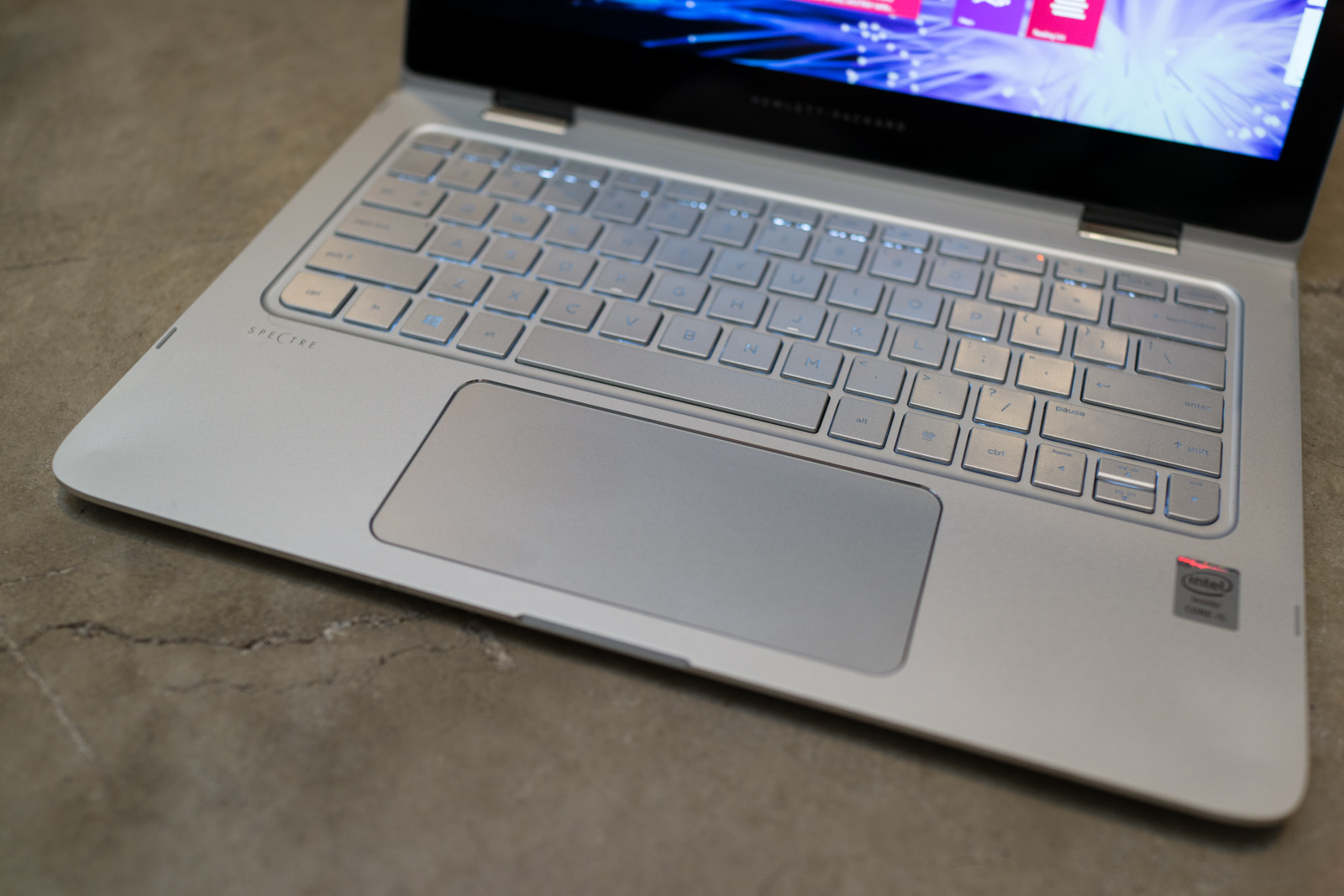
In general, we enjoyed using the massive, gesture-enabled Synaptics
ClickPad on the x360 because it provides ample space and features
excellent palm rejection so the cursor doesn’t randomly move around the
screen every time your wrist or palm brushes up against the touchpad as
you type. The fundamental problem we have with the buttonless ClickPad
on the x360 is the same problem that plagues every Windows laptop that
tries to use a buttonless touchpad surface: Windows requires at least a
left click and a right click for mouse operations.

The
reason that the buttonless touchpad works so well on Apple MacBooks is
that the Mac OS was designed for a one-button mouse (yes, you can use
multiple mouse buttons on a Mac, but the point is the default mouse
setup is a single mouse button). A MacBook touchpad doesn’t need to
worry about where a click happens because a click is a click, period.
Windows requires at least a two-button mouse for left-click and
right-click operations … and this is why buttonless touchpads have
problems.
During our testing period we frequently pressed the glass ClickPad
surface for a left click and the x360 would register a right click.
Similarly, sometimes we would try to make a right click and the x360
thought it was a left click. Worse still, occasionally the ClickPad
would simply ignore the fact that we made a click if it couldn’t
determine whether the click was a left click or a right click. We
managed to “partially” remedy the problem by adjusting the default
Synaptic driver settings so the ClickPad did a better job of recognizing
left clicks and right clicks, but we never completely eliminated the
problem.
Bottom line, unless Microsoft switches to a single mouse button
control interface in Windows 10, every notebook with a buttonless
ClickPad will struggle with these issues to some extent.


 down.
down.